



 By
·
11 minute read
By
·
11 minute read
If your team is still manually assigning carriers, copy-pasting addresses, and generating labels one by one, you're spending hours every week on work that a well-configured automation can handle in seconds. ShippyPro's Shipping Automation replaces up to 80% of manual shipping tasks. Shipping automation isn't just a nice-to-have for high-volume operations — it's the difference between a fulfillment process that scales and one that breaks under pressure. This guide walks you through what shipping automation actually does, the real business benefits it delivers, and how to get your first workflow live in minutes using ShippyPro's ready-made template library.
🗝 Key Takeaways
- Automation replaces repetitive manual steps: Rules you define once run automatically on every order — carrier assignment, label generation, address correction, insurance, and more.
- Templates get you started immediately: ShippyPro's built-in Automation template library covers the most common shipping workflows so you don't need to build rules from scratch.
- Error handling is built in: Dedicated templates catch bad address data, fix recipient info automatically, and reroute shipments to a fallback carrier if your first choice fails.
- It scales with your order volume: Whether you ship 500 or 50,000 orders a month, the same workflows run without adding headcount or manual effort.
- Setup takes minutes, not months: Pick a template, configure your conditions, and activate: your first automation can be live before your next order batch arrives.
📋 In this article
- What is shipping automation?
- The real benefits of automating your shipping
- Manual fulfillment vs. automated fulfillment
- ShippyPro's automation templates: a faster way to get started
- How to set up your first shipping automation workflow
- Real-world automation use cases for e-commerce merchants
- Common shipping automation mistakes to avoid
What is shipping automation?
Shipping automation means using software rules — often called workflows — to carry out shipping fulfillment tasks automatically without any manual intervention. When an order arrives in your system, the workflow evaluates it against the trigger and conditions you've set and executes the right actions instantly.
Those actions can include things like assigning a specific carrier based on the destination country, generating a shipping label, adding insurance on high-value orders, correcting a customer's address format, or creating an invoice and packing slip in one go. The rules fire every time, on every indicated order, without anyone needing to review them.
What triggers a shipping automation?
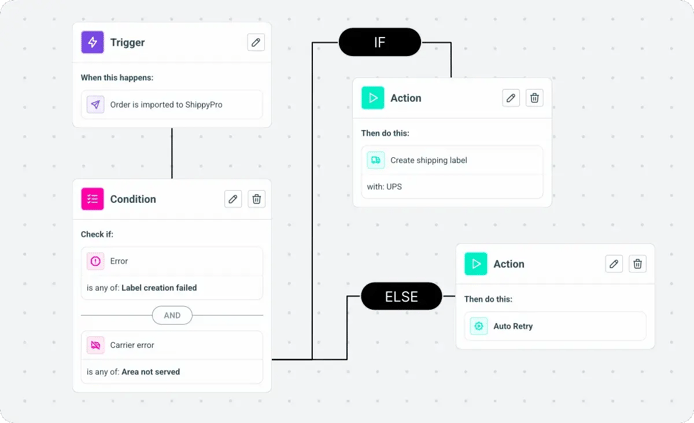
In ShippyPro, automations are built as workflows made up of three components: a trigger (the event that starts the workflow, such as an order being imported), optional conditions (filters that determine which orders the workflow applies to, based on attributes like destination country, order value, product name, SKU, weight, or item quantity), and one or more actions that execute automatically when the conditions are met. You can work with Shopify, WooCommerce, Amazon, and other connected sales channels as condition inputs. Filter workflows by store, order type, or destination so the right rules fire for the right orders.
If you've previously used Shipping Rules, Automation is the modern, more capable successor. Shipping Rules handle basic routing logic well, but they're limited to a single condition at a time and don't support multi-step actions, error handling, or priority ordering between rules.
Where does automation fit in the shipping fulfillment process?
Most automations happen at two key points: pre-shipment (when the order arrives and before the label is generated) and at label generation (to make sure the right carrier, package, and documents are assigned).
Is shipping automation only for large operations?
No. The efficiency gains are proportional to your volume, but even merchants shipping a few hundred orders a month benefit significantly. If you're manually touching every order — even just for 30 seconds each — automating that step saves meaningful time every single week. And as your volume grows, the savings compound without any additional setup.
The real benefits of automating your shipping
The business case for shipping automation usually comes down to four things: time, accuracy, cost, and customer experience. Here's what each of those actually looks like in practice.
Fewer hours spent on manual processing
Every time someone on your team manually checks an order, selects a carrier, types in a package size, and generates a label, that's a workflow that could run itself. That's time that shifts from busywork back to important fulfillment work that actually requires human judgment.
With ShippyPro's shipping automation, those repetitive steps run the moment an order is imported, with no one needing to intervene unless an exception occurs.
Fewer shipping errors
Manual processes produce manual errors. A carrier selected for the wrong zone, an address with a missing phone number that blocks label generation, a high-value order shipped without insurance: these are common and costly mistakes. Automation removes the human steps where these errors happen. Workflows run consistently every time, regardless of order volume or how busy your warehouse team is.
ShippyPro merchants using Automation see shipping errors drop by around 30% — a direct result of removing the manual decision points where mistakes most often occur.
Lower shipping costs through smarter carrier assignment
Automation lets you translate your carrier strategy into workflows that execute consistently. You can preassign the most cost-effective carrier for each destination, route orders above a certain weight to a specific service, and ensure the right carrier is always used for the right order type. All without any manual checks or judgment calls under pressure.
Build loyalty-earning customer experiences
Every shipment is a post-purchase touchpoint — and how it's handled directly shapes whether a customer comes back. Automation makes that touchpoint more reliable: faster label generation means orders leave sooner, accurate address data means fewer failed deliveries, and automatic tracking updates keep customers informed from the moment the label is created. The result is a delivery experience that feels proactive and professional, without your team doing anything manually. Pair this with ShippyPro Track & Trace for branded, real-time delivery updates that reinforce your brand at every step.
Manual fulfillment vs. automated fulfillment
To make the difference concrete, here's what the same fulfillment process looks like with and without automation.
| Task | Manual approach | With ShippyPro automation |
|---|---|---|
| Carrier assignment | Selected per order by a team member | Preassigned by rule (country, weight, value) |
| Label generation | Triggered manually after review | Generated automatically on order import |
| Address errors | Discovered at label creation: blocks shipments | Caught and corrected automatically pre-shipment |
| Insurance on high-value orders | Added inconsistently, easy to forget | Applied automatically above a set order value |
| Invoice & packing slip | Generated and printed separately | Created automatically after label generation |
| Carrier failure fallback | Manual intervention required | Rerouted to backup carrier automatically |
ShippyPro's automation templates: a faster way to get started
One of the most common reasons merchants delay setting up automation is the assumption that it requires technical knowledge or significant configuration time. ShippyPro's Automation template library removes this barrier entirely. Rather than building workflows from scratch, you start from a pre-configured template that already covers the most common shipping scenarios.
ShippyPro's Automation template library is organized into four categories, each targeting a specific stage of the fulfillment process. If you're not sure where to start, the Popular tab surfaces the most widely used templates across ShippyPro merchants: Preassign a Carrier, Add insurance based on order value, Generate label, Prevent Errors of invalid customer Info, and Correct recipient information in case of errors. Beyond that, templates are organized into three functional categories:
- Pre-shipment: These workflows run before the label is generated, making sure all order data is correct and complete.
- Shipping: These workflows activate at the point of label generation, handling the label itself plus the supporting documents.
- Error handling: These templates catch and resolve the problems that most often block shipments — address issues, invalid customer data, and carrier failures — so orders don't get stuck waiting for manual fixes.
| Template name | What it does |
|---|---|
| 🕐 Pre-shipment | |
| Assign Package Based on Product | Automatically selects the right package size based on the product being shipped, reducing packing errors |
| Create Multi-parcel Shipments Based on the Number of Items | Adds multiple parcels to orders with multiple items automatically |
| Add Instructions for fragile goods | Adds handling notes to shipments containing fragile items, based on product type |
| Add Instructions for Cash On Delivery orders | Adds COD handling notes automatically so carriers process these orders correctly |
| Add phone number if empty | Inserts a predefined fallback phone number if the customer didn't provide one — prevents label failures on carriers that require it |
| Assign Incoterm | Assigns the correct international trade term based on the destination country |
| 🏷 Shipping | |
| Format address and ship | Corrects address formatting automatically before generating the label, preventing the most common cause of label failures |
| Generate label | Generates the label with your chosen carrier the moment the order arrives |
| Create invoice | Generates the order invoice automatically after label generation |
| Create packing slip | Generates the packing slip automatically after label generation |
| ⚠️ Error handling | |
| Prevent Errors of invalid customer Info | Formats customer data to avoid the most common errors before they happen |
| Correct recipient information in case of errors | Fixes customer info that's actively blocking a shipment |
| Reroute to a carrier in case of error | Automatically retries with a secondary carrier if your first-choice carrier fails — orders don't get stuck waiting for manual intervention |
If you're new to automation, don't try to configure everything at once. Pick the single template that addresses your most frequent manual task — for most merchants that's either "Preassign a Carrier" or "Generate label" — activate it, and watch it run for a week. Once you're confident in how it works, layer in additional templates one at a time.
How to set up your first shipping automation workflow
Setting up a workflow from a template in ShippyPro takes less than five minutes. Here's how the process works from start to finish.
Navigate to Automation in your ShippyPro account. You'll see three tabs: Workflows, Logs, and Templates.
Click the Templates tab to browse all available workflow templates, organized by category: Popular, Pre-shipment, Shipping, and Error handling.
Find the template that matches the task you want to automate and click the Use template button on its card. The template will open in the workflow editor with the trigger and action already pre-configured.
The template pre-fills the workflow structure, but you'll need to add your details. Conditions can be based on destination country, store (Shopify, WooCommerce, Amazon, and any other connected sales channel), order value, product name, SKU, weight, item quantity, payment method, and more. For example, a carrier preassignment rule might filter by country and store at the same time.
Once your conditions are set, activate the workflow. From this point on, every order that matches your conditions will be processed automatically: no manual steps required.
If you're setting up a workflow that generates labels automatically on import (like the "Generate label" template), test it on a small batch of orders first. Confirm the correct carrier, service, and package are being assigned before your next high-volume period — automated label generation is fast, but reversing a large batch of incorrect labels takes time.
Real-world automation use cases for e-commerce merchants
To make automation concrete, here are six scenarios that come up regularly for e-commerce merchants and the specific template or workflow configuration that handles each one.
Automatically assign the cheapest carrier by destination
You ship to multiple countries and different carriers win on price for different destinations. Instead of checking rates manually for every order, use the Preassign a Carrier template to assign the right carrier the moment the order is imported. You can combine conditions — for example, Shopify orders destined for Germany assigned to one carrier, Amazon orders for Italy assigned to another — all in separate workflows running simultaneously.
Never ship a high-value order without insurance again
Set an order value threshold (say, $150) and use the Add insurance based on order value template to automatically add insurance to every order above it. This removes a decision that's easy to forget under volume pressure and protects you against the cost of claims on high-value losses.
Stop address errors from blocking your label queue
Address formatting issues are one of the most common causes of label generation failures. The Prevent Errors of invalid customer Info template formats customer data automatically before the label runs. If an error still slips through, the Correct recipient information in case of errors template catches it and fixes it so the shipment isn't blocked.
Generate labels, invoices, and packing slips automatically
Rather than using separate templates for each document, build a custom workflow using the + Create workflow button and add Generate label, Create invoice, and Create packing slip as sequential actions within a single workflow. Every order that arrives gets its label, invoice, and packing slip generated automatically — your team just picks the orders and ships them.
Handle fragile goods and COD orders without separate processes
If you sell fragile products alongside standard items, the Add Instructions for fragile goods template adds the right handling notes automatically based on product type. For cash on delivery orders, Add Instructions for Cash On Delivery orders adds the correct notes so your carriers handle them properly — no separate review process needed.
Build in a carrier failover so no order gets stuck
When your first-choice carrier returns an error, the Reroute to a carrier in case of error template automatically retries with a secondary carrier, so the label still generates and the order ships on time. This is especially valuable during peak periods when carrier systems are under load. Track every shipment's status in real time through ShippyPro Track & Trace.
| Use case | Template to use | Category | Key condition to set |
|---|---|---|---|
| Assign carrier by destination | Preassign a Carrier | Popular / Pre-shipment | Destination country, store |
| Add insurance on high-value orders | Add insurance based on order value | Popular / Pre-shipment | Order value threshold |
| Fix address errors pre-label | Prevent Errors of invalid customer Info | Popular / Error handling | Always-on (no condition needed) |
| Generate label on import | Generate label | Popular / Shipping | Carrier selection |
| Auto-generate invoice + packing slip | Custom workflow (+ Create workflow) | Shipping | After label generation |
| Carrier failover on error | Reroute to a carrier in case of error | Error handling | Fallback carrier selection |
| Assign package by product | Assign Package Based on Product | Pre-shipment | Product name / SKU |
| Multi-parcel for multi-item orders | Create Multi-parcel Shipments | Pre-shipment | Item quantity threshold |
Common shipping automation mistakes to avoid
Shipping automation delivers the most value when it's set up correctly from the start. These are the mistakes that most often reduce its effectiveness or create new problems.
Setting up too many workflows at once
It's tempting to activate every relevant template immediately. The problem is that when multiple workflows run on the same order, conflicts can occur: especially if two rules assign different carriers or apply different package sizes. You can manage execution order using the Priority column (workflows run highest priority first), but it's still good practice to start with your highest-priority workflows, verify they're running correctly in the Logs tab, then add more after testing.
Forgetting to update workflows when your carrier contracts change
If you negotiate new rates or switch preferred carriers, your automation rules need to reflect that. A workflow that was optimal six months ago may now be routing orders to a more expensive carrier. Review your active workflows whenever you change your carrier setup.
Not using error handling templates alongside your main workflows
The pre-shipment and shipping templates are the core of your automation workflows — but they assume clean input data. If customer addresses are frequently incomplete or formatted incorrectly, your main workflows will fail without the error handling templates in place. Activate at least one error handling workflow alongside every shipping workflow you set up.
ShippyPro Automation
Build shipping workflows that run automatically on every order — from carrier assignment to label generation to error handling.
Explore Automation →ShippyPro Shipping Platform
The full multi-carrier shipping platform powering your automation — connect carriers, sync orders, and ship from one place.
See Shipping Platform →Track & Trace
Give customers branded, real-time tracking updates triggered automatically when labels are generated by your workflows.
Learn about Tracking →Easy Return
Automate your returns process alongside outbound shipping — give customers a self-service return portal that works with your rules.
Explore Returns →ShippyPro Resources
Guides, webinars, and documentation to help you get the most out of ShippyPro's shipping and automation features.
Browse Resources →What is shipping automation and how does it work?
Shipping automation uses software rules (called workflows) to carry out fulfillment tasks automatically when an order arrives. Each workflow has three components: a trigger (the event that starts it, such as an order being imported), optional conditions (filters that determine which orders it applies to, based on attributes like destination country, store, order value, or product), and one or more actions such as assigning a carrier or generating a label. Every order that matches the conditions triggers the actions automatically, with no manual steps required.
Do I need technical knowledge to set up shipping automation in ShippyPro?
No. ShippyPro's template library provides pre-configured workflows for the most common shipping scenarios — carrier assignment, label generation, address correction, insurance, and more. You pick a template, fill in your specific conditions (like which carrier to assign or what order value threshold to use), and activate it. No coding or technical setup required.
How many automation workflows can I run at the same time?
ShippyPro supports multiple active workflows running simultaneously, with no cap on the number of workflows you can create. Automation uses a freemium model: all users get 1,000 free executions per month (each workflow run on an order counts as one execution, regardless of how many actions it contains). Once you reach that limit, you'll need to subscribe to keep workflows running. You can upgrade directly from the Automation section in your account. When running multiple workflows, activate them one at a time and verify each one in the Logs tab before adding the next.
What happens if my automation workflow encounters an error?
ShippyPro's error handling templates are specifically designed for this. The "Reroute to a carrier in case of error" template automatically retries with a secondary carrier if your first choice fails. The "Correct recipient information in case of errors" template fixes customer data that's blocking a shipment. You can also monitor all workflow activity in the Logs tab to catch and diagnose any issues.
Can shipping automation help reduce my shipping costs?
Yes. By automating carrier assignment, you ensure the most cost-effective carrier is always used for each order type — rather than defaulting to a single carrier out of convenience or habit. Rules run consistently at any volume, so the cost savings compound as your order count grows.
Ready to stop processing orders manually?
Set up your first automation workflow in minutes with ShippyPro's template library — no technical setup required.
Try 14 days free →
The Product Team at ShippyPro is dedicated to building innovative solutions that empower businesses to simplify their shipping operations. By combining customer research with cutting-edge technology, we design features that enhance efficiency, reduce effort, and boost logistics flexibility.